
/home/kueuepay/public_html/vendor/defuse/php-encryption/docs/InstallingAndVerifying.md
Getting The Code
=================

There are two ways to use this library in your applications. You can either:

1. Use [Composer](https://getcomposer.org/), or
2. `require_once` a single `.phar` file in your application.

If you are not using either option (for example, because you're using Git submodules), you may need to write your own autoloader ([example](https://gist.github.com/paragonie-scott/949daee819bb7f19c50e5e103170b400)).

Option 1: Using Composer
-------------------------

Run this inside the directory of your composer-enabled project:

```sh
composer require defuse/php-encryption
```

Unfortunately, composer doesn't provide a way for you to verify that the code
you're getting was signed by this library's authors. If you want a more secure
option, use the `.phar` method described below.

Option 2: Including a PHAR
----------------------------

The `.phar` option lets you include this library into your project simply by
calling `require_once` on a single file. Download `defuse-crypto.phar` and
`defuse-crypto.phar.sig` from this project's
[releases](https://github.com/defuse/php-encryption/releases) page.

You should verify the integrity of the `.phar`. The `defuse-crypto.phar.sig`
contains the signature of `defuse-crypto.phar`. It is signed with Taylor
Hornby's PGP key. You can find Taylor's public key in `dist/signingkey.asc`. You
can verify the public key's fingerprint against the Taylor Hornby's [contact
page](https://defuse.ca/contact.htm) and
[twitter](https://twitter.com/DefuseSec/status/723741424253059074).

Once you have verified the signature, it is safe to use the `.phar`. Place it
somewhere in your file system, e.g. `/var/www/lib/defuse-crypto.phar`, and then
pass that path to `require_once`.

```php
<?php

    require_once('/var/www/lib/defuse-crypto.phar');

    // ... the Crypto, File, Key, and KeyProtectedByPassword classes are now
    // available ...

    // ...
```

Save Card
top

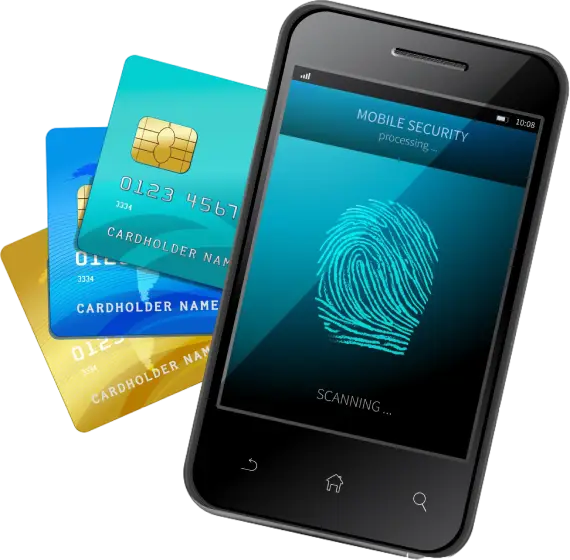
Save Your Card for Quick and Easy Future Payments Online

Simplify your payment experience by securely saving your card on our platform. After your initial transaction, you can choose to store your card details safely for future use. This feature eliminates the need to re-enter your payment information each time, making checkouts faster while keeping your data secure with advanced encryption and robust security measures.

  • Navigate to the “Save Card” section.
  • Click on “Add Card.”
  • Choose your preferred setup method.
  • Your card is now saved for future payments.
img