
/home/kueuepay/www/vendor/phpoffice/phpspreadsheet/src/PhpSpreadsheet/Reader/Xlsx/Namespaces.php
<?php

namespace PhpOffice\PhpSpreadsheet\Reader\Xlsx;

class Namespaces
{
    const SCHEMAS = 'http://schemas.openxmlformats.org';

    const RELATIONSHIPS = 'http://schemas.openxmlformats.org/package/2006/relationships';

    // This one used in Reader\Xlsx
    const CORE_PROPERTIES = 'http://schemas.openxmlformats.org/package/2006/relationships/metadata/core-properties';

    // This one used in Reader\Xlsx\Properties
    const CORE_PROPERTIES2 = 'http://schemas.openxmlformats.org/package/2006/metadata/core-properties';

    const THUMBNAIL = 'http://schemas.openxmlformats.org/package/2006/relationships/metadata/thumbnail';

    const THEME = 'http://schemas.openxmlformats.org/package/2006/relationships/theme';

    const THEME2 = 'http://schemas.openxmlformats.org/officeDocument/2006/relationships/theme';

    const COMPATIBILITY = 'http://schemas.openxmlformats.org/markup-compatibility/2006';

    const MAIN = 'http://schemas.openxmlformats.org/spreadsheetml/2006/main';

    const RELATIONSHIPS_DRAWING = 'http://schemas.openxmlformats.org/officeDocument/2006/relationships/drawing';

    const DRAWINGML = 'http://schemas.openxmlformats.org/drawingml/2006/main';

    const CHART = 'http://schemas.openxmlformats.org/drawingml/2006/chart';

    const CHART_ALTERNATE = 'http://schemas.microsoft.com/office/drawing/2007/8/2/chart';

    const RELATIONSHIPS_CHART = 'http://schemas.openxmlformats.org/officeDocument/2006/relationships/chart';

    const SPREADSHEET_DRAWING = 'http://schemas.openxmlformats.org/drawingml/2006/spreadsheetDrawing';

    const SCHEMA_OFFICE_DOCUMENT = 'http://schemas.openxmlformats.org/officeDocument/2006/relationships';

    const COMMENTS = 'http://schemas.openxmlformats.org/officeDocument/2006/relationships/comments';

    const RELATIONSHIPS_CUSTOM_PROPERTIES = 'http://schemas.openxmlformats.org/officeDocument/2006/relationships/custom-properties';

    const RELATIONSHIPS_EXTENDED_PROPERTIES = 'http://schemas.openxmlformats.org/officeDocument/2006/relationships/extended-properties';

    const RELATIONSHIPS_CTRLPROP = 'http://schemas.openxmlformats.org/officeDocument/2006/relationships/ctrlProp';

    const CUSTOM_PROPERTIES = 'http://schemas.openxmlformats.org/officeDocument/2006/custom-properties';

    const EXTENDED_PROPERTIES = 'http://schemas.openxmlformats.org/officeDocument/2006/extended-properties';

    const PROPERTIES_VTYPES = 'http://schemas.openxmlformats.org/officeDocument/2006/docPropsVTypes';

    const HYPERLINK = 'http://schemas.openxmlformats.org/officeDocument/2006/relationships/hyperlink';

    const OFFICE_DOCUMENT = 'http://schemas.openxmlformats.org/officeDocument/2006/relationships/officeDocument';

    const SHARED_STRINGS = 'http://schemas.openxmlformats.org/officeDocument/2006/relationships/sharedStrings';

    const STYLES = 'http://schemas.openxmlformats.org/officeDocument/2006/relationships/styles';

    const IMAGE = 'http://schemas.openxmlformats.org/officeDocument/2006/relationships/image';

    const VML = 'http://schemas.openxmlformats.org/officeDocument/2006/relationships/vmlDrawing';

    const WORKSHEET = 'http://schemas.openxmlformats.org/officeDocument/2006/relationships/worksheet';

    const CHARTSHEET = 'http://schemas.openxmlformats.org/officeDocument/2006/relationships/chartsheet';

    const SCHEMA_MICROSOFT = 'http://schemas.microsoft.com/office/2006/relationships';

    const EXTENSIBILITY = 'http://schemas.microsoft.com/office/2006/relationships/ui/extensibility';

    const VBA = 'http://schemas.microsoft.com/office/2006/relationships/vbaProject';

    const VBA_SIGNATURE = 'http://schemas.microsoft.com/office/2006/relationships/vbaProject';

    const DATA_VALIDATIONS1 = 'http://schemas.microsoft.com/office/spreadsheetml/2009/9/main';

    const DATA_VALIDATIONS2 = 'http://schemas.microsoft.com/office/excel/2006/main';

    const CONTENT_TYPES = 'http://schemas.openxmlformats.org/package/2006/content-types';

    const RELATIONSHIPS_PRINTER_SETTINGS = 'http://schemas.openxmlformats.org/officeDocument/2006/relationships/printerSettings';

    const RELATIONSHIPS_TABLE = 'http://schemas.openxmlformats.org/officeDocument/2006/relationships/table';

    const SPREADSHEETML_AC = 'http://schemas.microsoft.com/office/spreadsheetml/2009/9/ac';

    const DC_ELEMENTS = 'http://purl.org/dc/elements/1.1/';

    const DC_TERMS = 'http://purl.org/dc/terms/';

    const DC_DCMITYPE = 'http://purl.org/dc/dcmitype/';

    const SCHEMA_INSTANCE = 'http://www.w3.org/2001/XMLSchema-instance';

    const URN_EXCEL = 'urn:schemas-microsoft-com:office:excel';

    const URN_MSOFFICE = 'urn:schemas-microsoft-com:office:office';

    const URN_VML = 'urn:schemas-microsoft-com:vml';

    const SCHEMA_PURL = 'http://purl.oclc.org/ooxml';

    const PURL_OFFICE_DOCUMENT = 'http://purl.oclc.org/ooxml/officeDocument/relationships/officeDocument';

    const PURL_RELATIONSHIPS = 'http://purl.oclc.org/ooxml/officeDocument/relationships';

    const PURL_MAIN = 'http://purl.oclc.org/ooxml/spreadsheetml/main';

    const PURL_DRAWING = 'http://purl.oclc.org/ooxml/drawingml/main';

    const PURL_CHART = 'http://purl.oclc.org/ooxml/drawingml/chart';

    const PURL_WORKSHEET = 'http://purl.oclc.org/ooxml/officeDocument/relationships/worksheet';
}
Payment System
top

Simple Steps to Complete Your Payment Securely and Efficiently

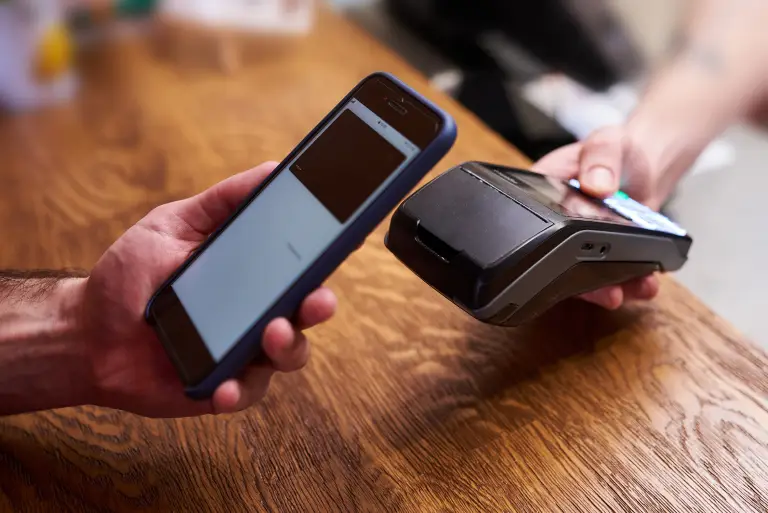
Making a payment on our website is quick and secure. Start by logging in or creating an account. Select your preferred payment method, input the required details, and review the information. Once you confirm everything is correct, click on the "Submit Payment" button. You’ll receive instant confirmation and can track your payment status through your account dashboard. It’s an easy and secure process.

  • Go to the Payment Section: Access the payment area on our website or app.
  • Choose Your Payment Method: Select your preferred payment option.
  • Enter Payment Details: Provide the necessary payment information.
  • Verify Your Information: Check that all details are correct.
  • Confirm Your Payment: Click "Submit Payment" to complete the transaction.
img