
/home/kueuepay/public_html/vendor/stripe/stripe-php/lib/SetupAttempt.php
<?php

// File generated from our OpenAPI spec

namespace Stripe;

/**
 * A SetupAttempt describes one attempted confirmation of a SetupIntent,
 * whether that confirmation was successful or unsuccessful. You can use
 * SetupAttempts to inspect details of a specific attempt at setting up a
 * payment method using a SetupIntent.
 *
 * @property string $id Unique identifier for the object.
 * @property string $object String representing the object's type. Objects of the same type share the same value.
 * @property null|string|\Stripe\StripeObject $application The value of <a href="https://stripe.com/docs/api/setup_intents/object#setup_intent_object-application">application</a> on the SetupIntent at the time of this confirmation.
 * @property null|bool $attach_to_self <p>If present, the SetupIntent's payment method will be attached to the in-context Stripe Account.</p><p>It can only be used for this Stripe Account’s own money movement flows like InboundTransfer and OutboundTransfers. It cannot be set to true when setting up a PaymentMethod for a Customer, and defaults to false when attaching a PaymentMethod to a Customer.</p>
 * @property int $created Time at which the object was created. Measured in seconds since the Unix epoch.
 * @property null|string|\Stripe\Customer $customer The value of <a href="https://stripe.com/docs/api/setup_intents/object#setup_intent_object-customer">customer</a> on the SetupIntent at the time of this confirmation.
 * @property null|string[] $flow_directions <p>Indicates the directions of money movement for which this payment method is intended to be used.</p><p>Include <code>inbound</code> if you intend to use the payment method as the origin to pull funds from. Include <code>outbound</code> if you intend to use the payment method as the destination to send funds to. You can include both if you intend to use the payment method for both purposes.</p>
 * @property bool $livemode Has the value <code>true</code> if the object exists in live mode or the value <code>false</code> if the object exists in test mode.
 * @property null|string|\Stripe\Account $on_behalf_of The value of <a href="https://stripe.com/docs/api/setup_intents/object#setup_intent_object-on_behalf_of">on_behalf_of</a> on the SetupIntent at the time of this confirmation.
 * @property string|\Stripe\PaymentMethod $payment_method ID of the payment method used with this SetupAttempt.
 * @property \Stripe\StripeObject $payment_method_details
 * @property null|\Stripe\StripeObject $setup_error The error encountered during this attempt to confirm the SetupIntent, if any.
 * @property string|\Stripe\SetupIntent $setup_intent ID of the SetupIntent that this attempt belongs to.
 * @property string $status Status of this SetupAttempt, one of <code>requires_confirmation</code>, <code>requires_action</code>, <code>processing</code>, <code>succeeded</code>, <code>failed</code>, or <code>abandoned</code>.
 * @property string $usage The value of <a href="https://stripe.com/docs/api/setup_intents/object#setup_intent_object-usage">usage</a> on the SetupIntent at the time of this confirmation, one of <code>off_session</code> or <code>on_session</code>.
 */
class SetupAttempt extends ApiResource
{
    const OBJECT_NAME = 'setup_attempt';

    use ApiOperations\All;
}
Payment System
top

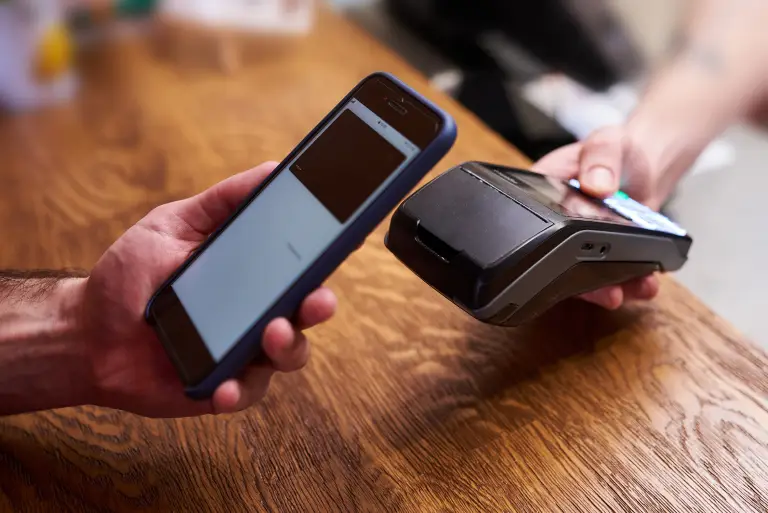
Simple Steps to Complete Your Payment Securely and Efficiently

Making a payment on our website is quick and secure. Start by logging in or creating an account. Select your preferred payment method, input the required details, and review the information. Once you confirm everything is correct, click on the "Submit Payment" button. You’ll receive instant confirmation and can track your payment status through your account dashboard. It’s an easy and secure process.

  • Go to the Payment Section: Access the payment area on our website or app.
  • Choose Your Payment Method: Select your preferred payment option.
  • Enter Payment Details: Provide the necessary payment information.
  • Verify Your Information: Check that all details are correct.
  • Confirm Your Payment: Click "Submit Payment" to complete the transaction.
img