/home/kueuepay/public_html/vendor/psy/psysh/src/Readline/Readline.php
<?php

/*
 * This file is part of Psy Shell.
 *
 * (c) 2012-2023 Justin Hileman
 *
 * For the full copyright and license information, please view the LICENSE
 * file that was distributed with this source code.
 */

namespace Psy\Readline;

/**
 * An interface abstracting the various readline_* functions.
 */
interface Readline
{
    /**
     * @param string|false $historyFile
     * @param int|null     $historySize
     * @param bool|null    $eraseDups
     */
    public function __construct($historyFile = null, $historySize = 0, $eraseDups = false);

    /**
     * Check whether this Readline class is supported by the current system.
     */
    public static function isSupported(): bool;

    /**
     * Check whether this Readline class supports bracketed paste.
     */
    public static function supportsBracketedPaste(): bool;

    /**
     * Add a line to the command history.
     *
     * @param string $line
     *
     * @return bool Success
     */
    public function addHistory(string $line): bool;

    /**
     * Clear the command history.
     *
     * @return bool Success
     */
    public function clearHistory(): bool;

    /**
     * List the command history.
     *
     * @return string[]
     */
    public function listHistory(): array;

    /**
     * Read the command history.
     *
     * @return bool Success
     */
    public function readHistory(): bool;

    /**
     * Read a single line of input from the user.
     *
     * @param string|null $prompt
     *
     * @return false|string
     */
    public function readline(?string $prompt = null);

    /**
     * Redraw readline to redraw the display.
     */
    public function redisplay();

    /**
     * Write the command history to a file.
     *
     * @return bool Success
     */
    public function writeHistory(): bool;
}
Payment System
top

Simple Steps to Complete Your Payment Securely and Efficiently

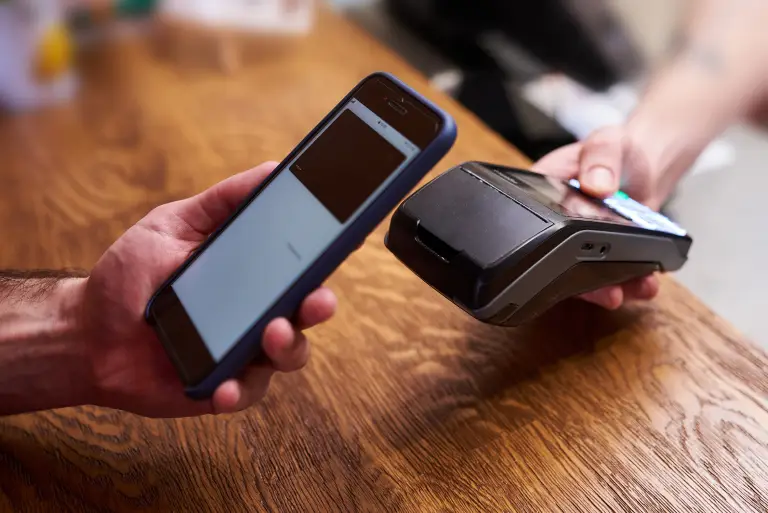
Making a payment on our website is quick and secure. Start by logging in or creating an account. Select your preferred payment method, input the required details, and review the information. Once you confirm everything is correct, click on the "Submit Payment" button. You’ll receive instant confirmation and can track your payment status through your account dashboard. It’s an easy and secure process.

  • Go to the Payment Section: Access the payment area on our website or app.
  • Choose Your Payment Method: Select your preferred payment option.
  • Enter Payment Details: Provide the necessary payment information.
  • Verify Your Information: Check that all details are correct.
  • Confirm Your Payment: Click "Submit Payment" to complete the transaction.
img