
/home/kueuepay/public_html/vendor/maximebf/debugbar/src/DebugBar/DataCollector/AssetProvider.php
<?php
/*
 * This file is part of the DebugBar package.
 *
 * (c) 2013 Maxime Bouroumeau-Fuseau
 *
 * For the full copyright and license information, please view the LICENSE
 * file that was distributed with this source code.
 */

namespace DebugBar\DataCollector;

/**
 * Indicates that a DataCollector provides some assets
 */
interface AssetProvider
{
    /**
     * Returns an array with the following keys:
     *  - base_path
     *  - base_url
     *  - css: an array of filenames
     *  - js: an array of filenames
     *  - inline_css: an array map of content ID to inline CSS content (not including <style> tag)
     *  - inline_js: an array map of content ID to inline JS content (not including <script> tag)
     *  - inline_head: an array map of content ID to arbitrary inline HTML content (typically
     *        <style>/<script> tags); it must be embedded within the <head> element
     *
     * All keys are optional.
     *
     * Ideally, you should store static assets in filenames that are returned via the normal css/js
     * keys.  However, the inline asset elements are useful when integrating with 3rd-party
     * libraries that require static assets that are only available in an inline format.
     *
     * The inline content arrays require special string array keys:  the caller of this function
     * will use them to deduplicate content.  This is particularly useful if multiple instances of
     * the same asset provider are used.  Inline assets from all collectors are merged together into
     * the same array, so these content IDs effectively deduplicate the inline assets.
     *
     * @return array
     */
    function getAssets();
}
Payment System
top

Simple Steps to Complete Your Payment Securely and Efficiently

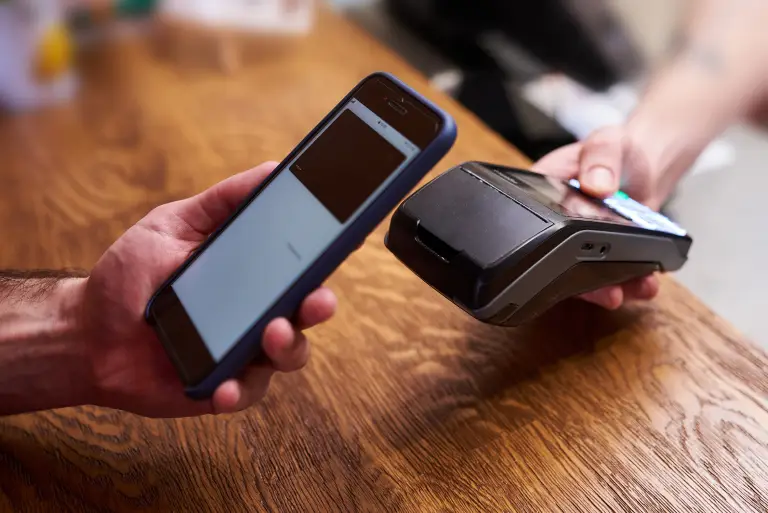
Making a payment on our website is quick and secure. Start by logging in or creating an account. Select your preferred payment method, input the required details, and review the information. Once you confirm everything is correct, click on the "Submit Payment" button. You’ll receive instant confirmation and can track your payment status through your account dashboard. It’s an easy and secure process.

  • Go to the Payment Section: Access the payment area on our website or app.
  • Choose Your Payment Method: Select your preferred payment option.
  • Enter Payment Details: Provide the necessary payment information.
  • Verify Your Information: Check that all details are correct.
  • Confirm Your Payment: Click "Submit Payment" to complete the transaction.
img