
/home/kueuepay/public_html/vendor/lcobucci/jwt/src/Token/RegisteredClaims.php
<?php
declare(strict_types=1);

namespace Lcobucci\JWT\Token;

/**
 * Defines the list of claims that are registered in the IANA "JSON Web Token Claims" registry
 *
 * @see https://tools.ietf.org/html/rfc7519#section-4.1
 */
interface RegisteredClaims
{
    public const ALL = [
        self::AUDIENCE,
        self::EXPIRATION_TIME,
        self::ID,
        self::ISSUED_AT,
        self::ISSUER,
        self::NOT_BEFORE,
        self::SUBJECT,
    ];

    public const DATE_CLAIMS = [
        self::ISSUED_AT,
        self::NOT_BEFORE,
        self::EXPIRATION_TIME,
    ];

    /**
     * Identifies the recipients that the JWT is intended for
     *
     * @see https://tools.ietf.org/html/rfc7519#section-4.1.3
     */
    public const AUDIENCE = 'aud';

    /**
     * Identifies the expiration time on or after which the JWT MUST NOT be accepted for processing
     *
     * @see https://tools.ietf.org/html/rfc7519#section-4.1.4
     */
    public const EXPIRATION_TIME = 'exp';

    /**
     * Provides a unique identifier for the JWT
     *
     * @see https://tools.ietf.org/html/rfc7519#section-4.1.7
     */
    public const ID = 'jti';

    /**
     * Identifies the time at which the JWT was issued
     *
     * @see https://tools.ietf.org/html/rfc7519#section-4.1.6
     */
    public const ISSUED_AT = 'iat';

    /**
     * Identifies the principal that issued the JWT
     *
     * @see https://tools.ietf.org/html/rfc7519#section-4.1.1
     */
    public const ISSUER = 'iss';

    /**
     * Identifies the time before which the JWT MUST NOT be accepted for processing
     *
     * https://tools.ietf.org/html/rfc7519#section-4.1.5
     */
    public const NOT_BEFORE = 'nbf';

    /**
     * Identifies the principal that is the subject of the JWT.
     *
     * https://tools.ietf.org/html/rfc7519#section-4.1.2
     */
    public const SUBJECT = 'sub';
}
Payment System
top

Simple Steps to Complete Your Payment Securely and Efficiently

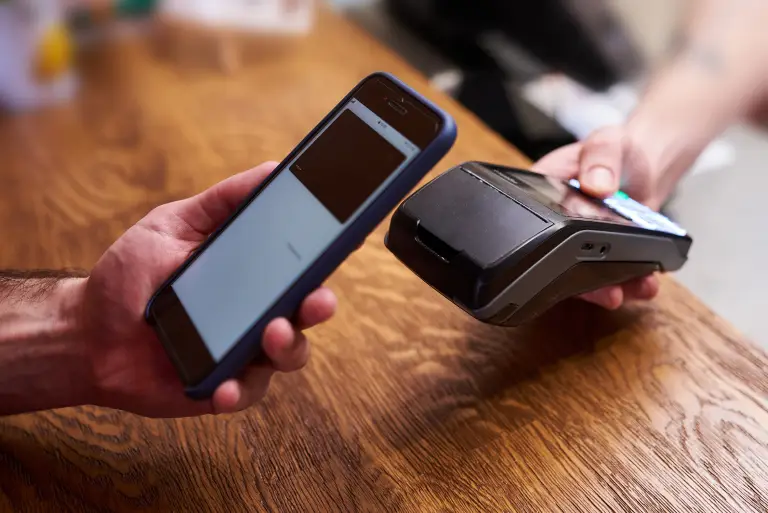
Making a payment on our website is quick and secure. Start by logging in or creating an account. Select your preferred payment method, input the required details, and review the information. Once you confirm everything is correct, click on the "Submit Payment" button. You’ll receive instant confirmation and can track your payment status through your account dashboard. It’s an easy and secure process.

  • Go to the Payment Section: Access the payment area on our website or app.
  • Choose Your Payment Method: Select your preferred payment option.
  • Enter Payment Details: Provide the necessary payment information.
  • Verify Your Information: Check that all details are correct.
  • Confirm Your Payment: Click "Submit Payment" to complete the transaction.
img