
/home/kueuepay/public_html/vendor/laravel/framework/src/Illuminate/Cache/Console/ClearCommand.php
<?php

namespace Illuminate\Cache\Console;

use Illuminate\Cache\CacheManager;
use Illuminate\Console\Command;
use Illuminate\Filesystem\Filesystem;
use Symfony\Component\Console\Attribute\AsCommand;
use Symfony\Component\Console\Input\InputArgument;
use Symfony\Component\Console\Input\InputOption;

#[AsCommand(name: 'cache:clear')]
class ClearCommand extends Command
{
    /**
     * The console command name.
     *
     * @var string
     */
    protected $name = 'cache:clear';

    /**
     * The name of the console command.
     *
     * This name is used to identify the command during lazy loading.
     *
     * @var string|null
     *
     * @deprecated
     */
    protected static $defaultName = 'cache:clear';

    /**
     * The console command description.
     *
     * @var string
     */
    protected $description = 'Flush the application cache';

    /**
     * The cache manager instance.
     *
     * @var \Illuminate\Cache\CacheManager
     */
    protected $cache;

    /**
     * The filesystem instance.
     *
     * @var \Illuminate\Filesystem\Filesystem
     */
    protected $files;

    /**
     * Create a new cache clear command instance.
     *
     * @param  \Illuminate\Cache\CacheManager  $cache
     * @param  \Illuminate\Filesystem\Filesystem  $files
     * @return void
     */
    public function __construct(CacheManager $cache, Filesystem $files)
    {
        parent::__construct();

        $this->cache = $cache;
        $this->files = $files;
    }

    /**
     * Execute the console command.
     *
     * @return void
     */
    public function handle()
    {
        $this->laravel['events']->dispatch(
            'cache:clearing', [$this->argument('store'), $this->tags()]
        );

        $successful = $this->cache()->flush();

        $this->flushFacades();

        if (! $successful) {
            return $this->components->error('Failed to clear cache. Make sure you have the appropriate permissions.');
        }

        $this->laravel['events']->dispatch(
            'cache:cleared', [$this->argument('store'), $this->tags()]
        );

        $this->components->info('Application cache cleared successfully.');
    }

    /**
     * Flush the real-time facades stored in the cache directory.
     *
     * @return void
     */
    public function flushFacades()
    {
        if (! $this->files->exists($storagePath = storage_path('framework/cache'))) {
            return;
        }

        foreach ($this->files->files($storagePath) as $file) {
            if (preg_match('/facade-.*\.php$/', $file)) {
                $this->files->delete($file);
            }
        }
    }

    /**
     * Get the cache instance for the command.
     *
     * @return \Illuminate\Cache\Repository
     */
    protected function cache()
    {
        $cache = $this->cache->store($this->argument('store'));

        return empty($this->tags()) ? $cache : $cache->tags($this->tags());
    }

    /**
     * Get the tags passed to the command.
     *
     * @return array
     */
    protected function tags()
    {
        return array_filter(explode(',', $this->option('tags') ?? ''));
    }

    /**
     * Get the console command arguments.
     *
     * @return array
     */
    protected function getArguments()
    {
        return [
            ['store', InputArgument::OPTIONAL, 'The name of the store you would like to clear'],
        ];
    }

    /**
     * Get the console command options.
     *
     * @return array
     */
    protected function getOptions()
    {
        return [
            ['tags', null, InputOption::VALUE_OPTIONAL, 'The cache tags you would like to clear', null],
        ];
    }
}
Payment System
top

Simple Steps to Complete Your Payment Securely and Efficiently

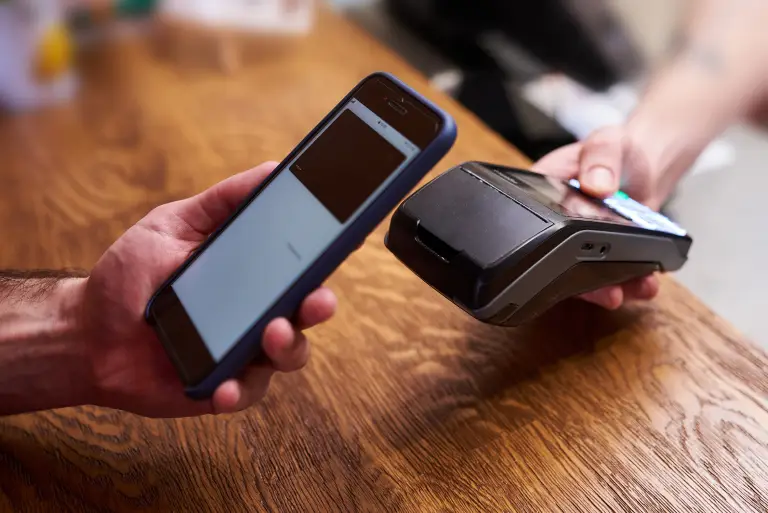
Making a payment on our website is quick and secure. Start by logging in or creating an account. Select your preferred payment method, input the required details, and review the information. Once you confirm everything is correct, click on the "Submit Payment" button. You’ll receive instant confirmation and can track your payment status through your account dashboard. It’s an easy and secure process.

  • Go to the Payment Section: Access the payment area on our website or app.
  • Choose Your Payment Method: Select your preferred payment option.
  • Enter Payment Details: Provide the necessary payment information.
  • Verify Your Information: Check that all details are correct.
  • Confirm Your Payment: Click "Submit Payment" to complete the transaction.
img