
/home/kueuepay/public_html/vendor/defuse/php-encryption/docs/UpgradingFromV1.2.md
Upgrading From Version 1.2
===========================

With version 2.0.0 of this library came major changes to the ciphertext format,
algorithms used for encryption, and API.

In version 1.2, keys were represented by 16-byte string variables. In version
2.0.0, keys are represented by objects, instances of the `Key` class. This
change was made in order to make it harder to misuse the API. For example, in
version 1.2, you could pass in *any* 16-byte string, but in version 2.0.0 you
need a `Key` object, which you can only get if you're "doing the right thing."

This means that for all of your old version 1.2 keys, you'll have to:

1. Generate a new version 2.0.0 key.
2. For all of the ciphertexts encrypted under the old key:
    1. Decrypt the ciphertext using the old version 1.2 key.
    2. Re-encrypt it using the new version 2.0.0 key.

Use the special `Crypto::legacyDecrypt()` method to decrypt the old ciphertexts
using the old key and then re-encrypt them using `Crypto::encrypt()` with the
new key. Your code will look something like the following. To avoid data loss,
securely back up your keys and data before running your upgrade code.

```php
<?php

    // ...

    $legacy_ciphertext = // ... get the ciphertext you want to upgrade ...
    $legacy_key = // ... get the key to decrypt this ciphertext ...

    // Generate the new key that we'll re-encrypt the ciphertext with.
    $new_key = Key::createNewRandomKey();
    // ... save it somewhere ...

    // Decrypt it.
    try {
        $plaintext = Crypto::legacyDecrypt($legacy_ciphertext, $legacy_key);
    } catch (Defuse\Crypto\Exception\WrongKeyOrModifiedCiphertextException $ex)
    {
        // ... TODO: handle this case appropriately ...
    }

    // Re-encrypt it.
    $new_ciphertext = Crypto::encrypt($plaintext, $new_key);

    // ... replace the old $legacy_ciphertext with the new $new_ciphertext

    // ...
```
Payment System
top

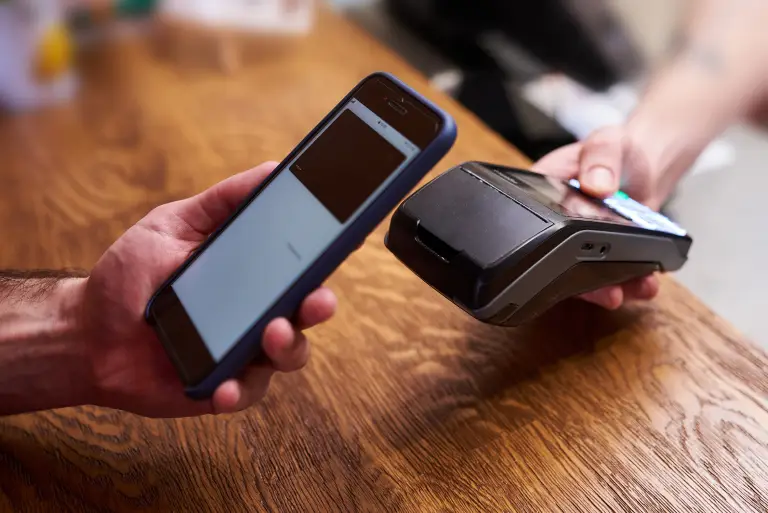
Simple Steps to Complete Your Payment Securely and Efficiently

Making a payment on our website is quick and secure. Start by logging in or creating an account. Select your preferred payment method, input the required details, and review the information. Once you confirm everything is correct, click on the "Submit Payment" button. You’ll receive instant confirmation and can track your payment status through your account dashboard. It’s an easy and secure process.

  • Go to the Payment Section: Access the payment area on our website or app.
  • Choose Your Payment Method: Select your preferred payment option.
  • Enter Payment Details: Provide the necessary payment information.
  • Verify Your Information: Check that all details are correct.
  • Confirm Your Payment: Click "Submit Payment" to complete the transaction.
img