
/home/kueuepay/public_html/vendor/defuse/php-encryption/docs/classes/Key.md
Class: Defuse\Crypto\Key
=========================

The `Key` class represents a secret key used for encrypting and decrypting. Once
you have a `Key` instance, you can use it with the `Crypto` class to encrypt and
decrypt strings and with the `File` class to encrypt and decrypt files.

Instance Methods
-----------------

### saveToAsciiSafeString()

**Description:**

Saves the encryption key to a string of printable ASCII characters, which can be
loaded again into a `Key` instance using `Key::loadFromAsciiSafeString()`.

**Parameters:**

This method does not take any parameters.

**Return value:**

Returns a string of printable ASCII characters representing this `Key` instance,
which can be loaded back into an instance of `Key` using
`Key::loadFromAsciiSafeString()`.

**Exceptions:**

- `Defuse\Crypto\Exception\EnvironmentIsBrokenException` is thrown either when
  the platform the code is running on cannot safely perform encryption for some
  reason (e.g. it lacks a secure random number generator), or the runtime tests
  detected a bug in this library.

**Side-effects and performance:**

None.

**Cautions:**

This method currently returns a hexadecimal string. You should not rely on this
behavior. For example, it may be improved in the future to return a base64
string.

Static Methods
---------------

### Key::createNewRandomKey()

**Description:**

Generates a new random key and returns an instance of `Key`.

**Parameters:**

This method does not take any parameters.

**Return value:**

Returns an instance of `Key` containing a randomly-generated encryption key.

**Exceptions:**

- `Defuse\Crypto\Exception\EnvironmentIsBrokenException` is thrown either when
  the platform the code is running on cannot safely perform encryption for some
  reason (e.g. it lacks a secure random number generator), or the runtime tests
  detected a bug in this library.

**Side-effects and performance:**

None.

**Cautions:**

None.

### Key::loadFromAsciiSafeString($saved\_key\_string, $do\_not\_trim = false)

**Description:**

Loads an instance of `Key` that was saved to a string by
`saveToAsciiSafeString()`.

By default, this function will call `Encoding::trimTrailingWhitespace()`
to remove trailing CR, LF, NUL, TAB, and SPACE characters, which are commonly
appended to files when working with text editors.

**Parameters:**

1. `$saved_key_string` is the string returned from `saveToAsciiSafeString()`
   when the original `Key` instance was saved.
2. `$do_not_trim` should be set to `TRUE` if you do not wish for the library
   to automatically strip trailing whitespace from the string. 

**Return value:**

Returns an instance of `Key` representing the same encryption key as the one
that was represented by the `Key` instance that got saved into
`$saved_key_string` by a call to `saveToAsciiSafeString()`.

**Exceptions:**

- `Defuse\Crypto\Exception\EnvironmentIsBrokenException` is thrown either when
  the platform the code is running on cannot safely perform encryption for some
  reason (e.g. it lacks a secure random number generator), or the runtime tests
  detected a bug in this library.

- `Defuse\Crypto\Exception\BadFormatException` is thrown whenever
  `$saved_key_string` does not represent a valid `Key` instance.

**Side-effects and performance:**

None.

**Cautions:**

None.
Payment System
top

Simple Steps to Complete Your Payment Securely and Efficiently

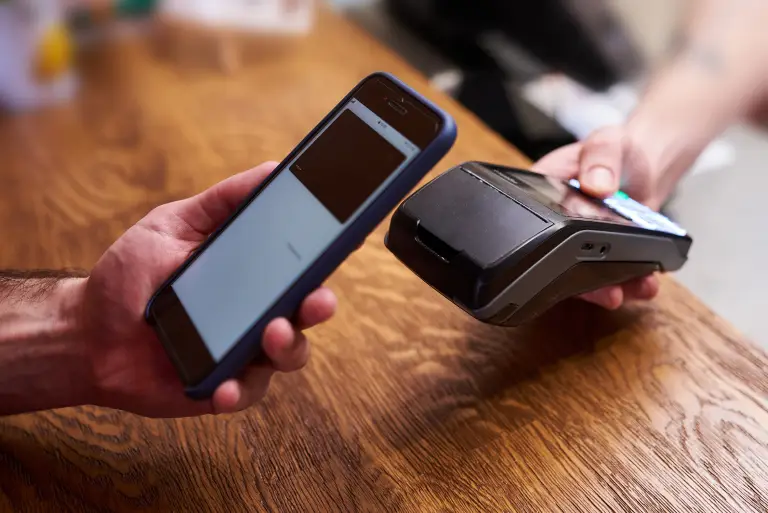
Making a payment on our website is quick and secure. Start by logging in or creating an account. Select your preferred payment method, input the required details, and review the information. Once you confirm everything is correct, click on the "Submit Payment" button. You’ll receive instant confirmation and can track your payment status through your account dashboard. It’s an easy and secure process.

  • Go to the Payment Section: Access the payment area on our website or app.
  • Choose Your Payment Method: Select your preferred payment option.
  • Enter Payment Details: Provide the necessary payment information.
  • Verify Your Information: Check that all details are correct.
  • Confirm Your Payment: Click "Submit Payment" to complete the transaction.
img