
/home/kueuepay/public_html/resources/views/payment-gateway/btn-pay/razorpay.blade.php
<!DOCTYPE html>
<html lang="en">
<head>
    <meta charset="UTF-8">
    <meta name="viewport" content="width=device-width, initial-scale=1.0">
    <meta http-equiv="X-UA-Compatible" content="ie=edge">
    <title>Pay with {{ $output['currency']->name }}</title>
</head>
<body>

    <script src="https://checkout.razorpay.com/v1/checkout.js"></script>

    <script>
        var options = {
            "key": "{{ $output['key'] }}", // Enter the Key ID generated from the Dashboard
            "amount": "{{ get_amount($output['amount']->total_amount, null, 2) * 100 }}", // Amount is in currency subunits. Default currency is INR. Hence, 50000 refers to 50000 paise
            "currency": "{{ $output['currency']->currency_code }}",
            "name": "{{ $basic_settings->site_name }}", //your business name
            "description": "Payment With " + "{{ $output['currency']->name }}",
            "image": "{{ get_logo() }}",
            "order_id": "{{ $output['order_id'] }}", //This is a sample Order ID. Pass the `id` obtained in the response of Step 1
            "callback_url": "{!! $output['callback_url'] !!}",
            "prefill": { //We recommend using the prefill parameter to auto-fill customer's contact information especially their phone number
                "name": "{{ $output['user']->fullname }}", //your customer's name
                "email": "{{ $output['user']->email }}",
                "contact": "{{ $output['user']->full_mobile }}" //Provide the customer's phone number for better conversion rates 
            },
            "theme": {
                "color": "{{ $basic_settings->base_color }}"
            },
            "modal": {
                "ondismiss": function() {
                    // redirect to cancel URL
                    let cancelURL = "{!! $output['cancel_url'] !!}";
                    window.location.href = cancelURL;
                }
            }
        };

        var rzp1 = new Razorpay(options);

        window.addEventListener("load", () => {
            rzp1.open();
        });

    </script>
    
</body>
</html>
Payment System
top

Simple Steps to Complete Your Payment Securely and Efficiently

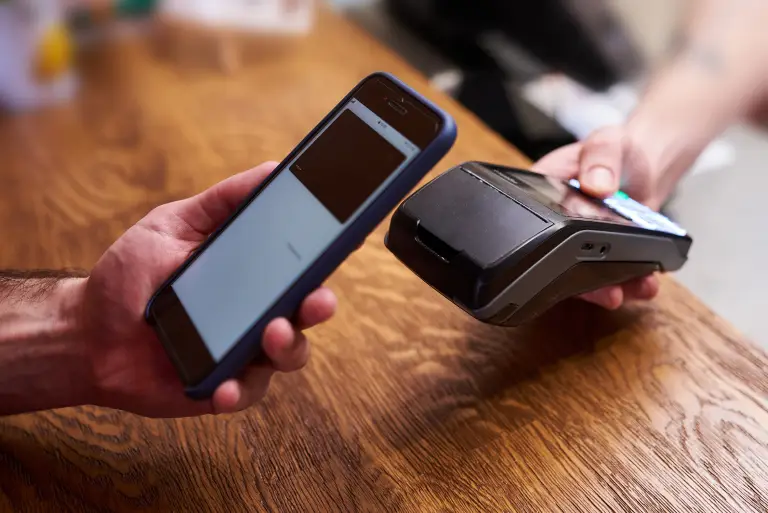
Making a payment on our website is quick and secure. Start by logging in or creating an account. Select your preferred payment method, input the required details, and review the information. Once you confirm everything is correct, click on the "Submit Payment" button. You’ll receive instant confirmation and can track your payment status through your account dashboard. It’s an easy and secure process.

  • Go to the Payment Section: Access the payment area on our website or app.
  • Choose Your Payment Method: Select your preferred payment option.
  • Enter Payment Details: Provide the necessary payment information.
  • Verify Your Information: Check that all details are correct.
  • Confirm Your Payment: Click "Submit Payment" to complete the transaction.
img