@extends('frontend.layouts.master')
@php
$app_local = get_default_language_code();
$default = App\Constants\LanguageConst::NOT_REMOVABLE;
$slug = Illuminate\Support\Str::slug(App\Constants\SiteSectionConst::ACCEPT_PAYMENT_SECTION);
$accept_payments = App\Models\Admin\SiteSections::getData($slug)->first();
@endphp
@section('content')
<section class="payment-section ptb-80">
<div class="container">
<div class="row mb-30-none">
<div class="col-lg-6 mb-30">
<div class="section-tag">
<span class="d-flex align-items-center">
<p>{{ $accept_payments->value->language->$app_local->title ?? $accept_payments->value->language->$default->title ?? '' }}</p> <i class="las la-cog"></i>
</span>
<div class="section-element">
<img src="{{ asset('public/frontend') }}/images/element/section-element.webp">
</div>
</div>
<div class="make-payment-wrapper">
<h2 class="title">{{ $accept_payments->value->language->$app_local->heading ?? $accept_payments->value->language->$default->heading ?? '' }}</h2>
<p>{{ $accept_payments->value->language->$app_local->sub_heading ?? $accept_payments->value->language->$default->sub_heading ?? '' }}</p>
</div>
</div>
<div class="col-lg-6 mb-30">
<div class="payment-img">
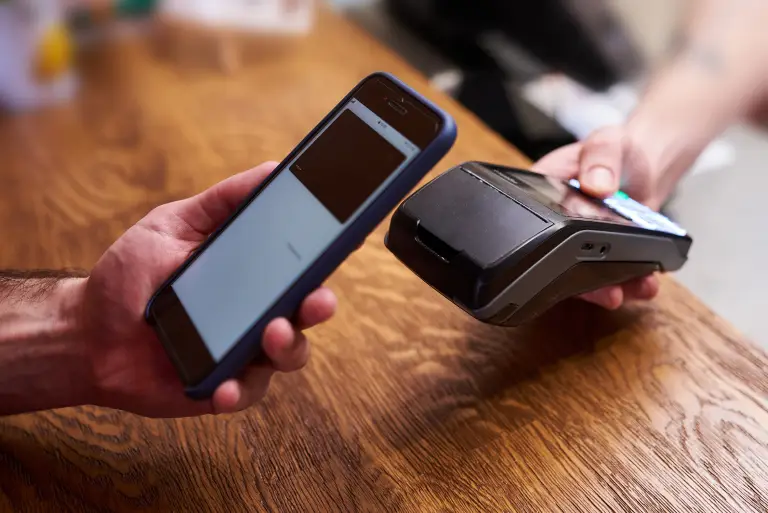
<img src="{{ get_image($accept_payments->value->image ?? '', 'site-section') }}" alt="img">
</div>
</div>
</div>
</div>
</section>
@endsection
How To Payment
Making a payment on our website is quick and secure. Start by logging in or creating an account. Select your preferred payment method, input the required details, and review the information. Once you confirm everything is correct, click on the "Submit Payment" button. You’ll receive instant confirmation and can track your payment status through your account dashboard. It’s an easy and secure process.